Contents
Tags
How to Use Runyard — Step-by-Step Explainer
runyard.dev is built around one idea: you should know what will run on your machine before you download anything. This walkthrough covers every part of the interface so you can get to the right model in under two minutes.
Step 1 — Open Runyard and Enter Your Hardware
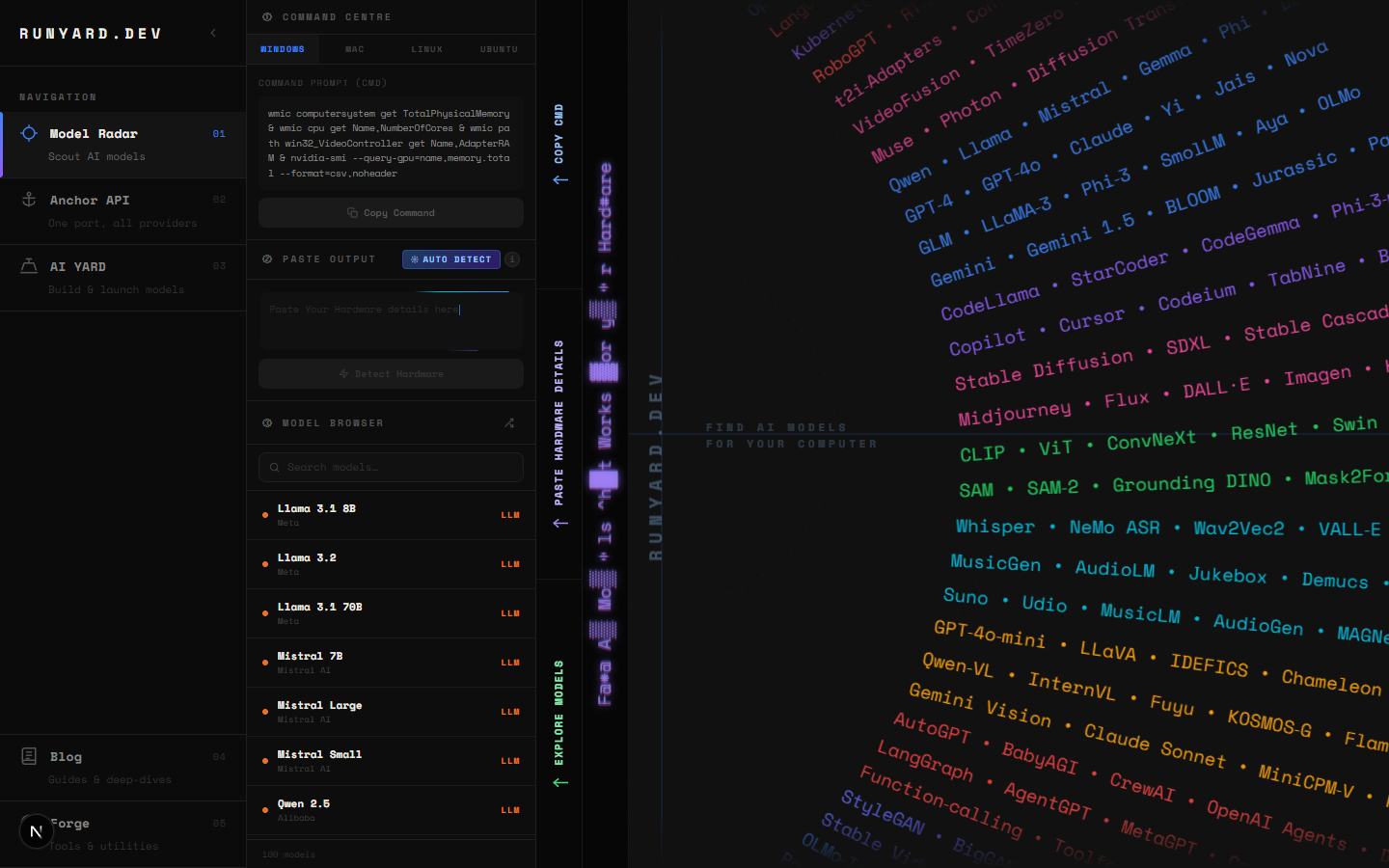
When you land on runyard.dev, you'll see the hardware panel in the top-left corner. Fill in four fields:
- 1.CPU — pick from the dropdown. Covers Intel, AMD, Apple Silicon, and mobile chips.
- 2.CPU Cores — select how many cores your CPU has.
- 3.System RAM — choose your total system memory in GB.
- 4.GPU — pick your graphics card. VRAM auto-fills based on your selection.
Not sure about your specs? On Windows: Task Manager → Performance tab. On macOS: About This Mac → More Info. On Linux: lspci | grep VGA and free -h.
Step 2 — Read the Sunburst Chart
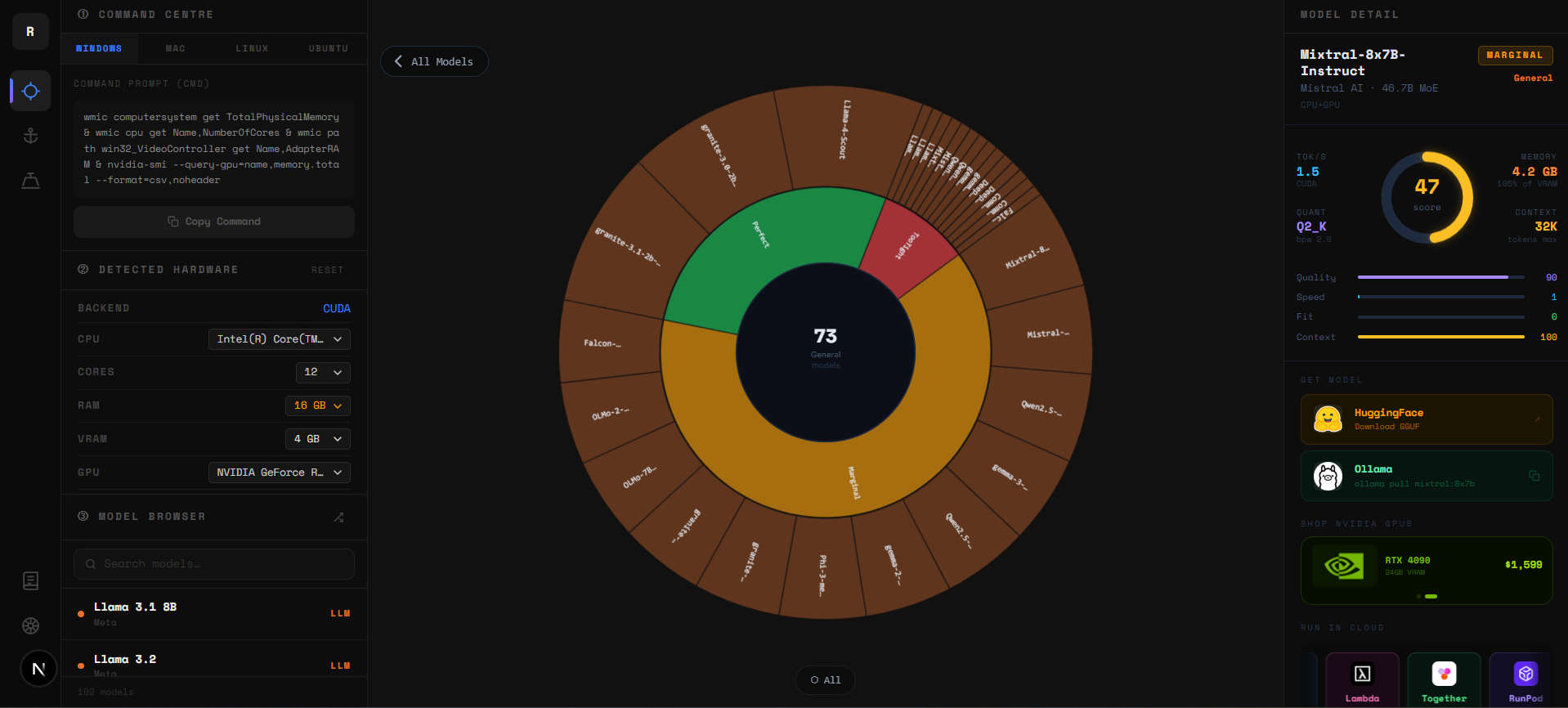
The sunburst chart shows your entire model catalog at a glance. Inner rings are categories (Chat, Code, Vision, Reasoning). Outer arcs are individual models. Colors update live as you change your hardware:
- ▸Green — comfortable fit, runs with VRAM to spare.
- ▸Blue/teal — good fit, usable tok/s on your hardware.
- ▸Yellow — tight fit, model loads but uses nearly all your VRAM.
- ▸Red — exceeds your VRAM, falls back to slow CPU inference.
- ▸Grey — incompatible with your current configuration.
Click any inner ring to zoom into that category. Click a model arc to open its detail panel. Click the center to zoom back out.
Step 3 — Use the Tier List to Pick Your Model
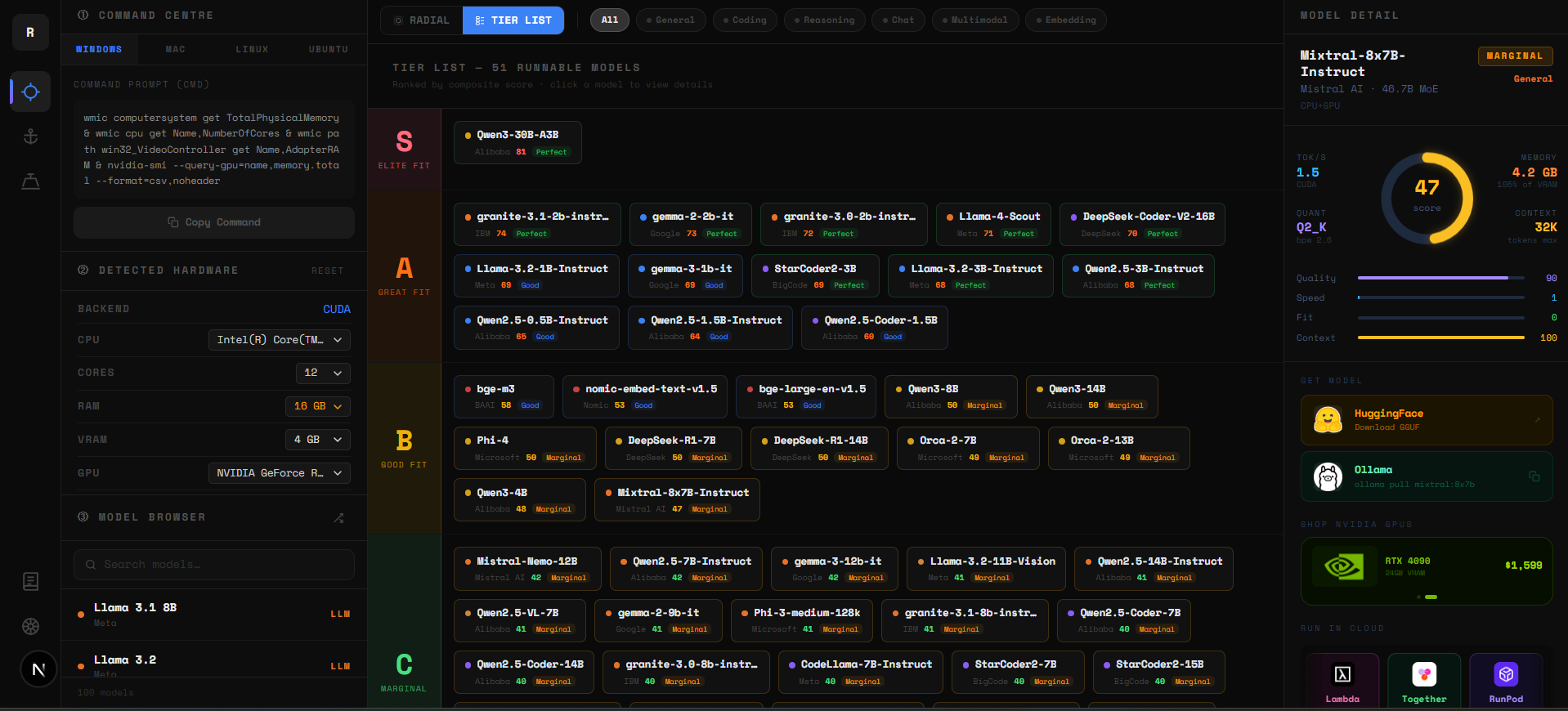
Below the sunburst is the Tier List — every runnable model ranked S to D by a composite score: VRAM headroom (40%), memory bandwidth (35%), and benchmark quality (25%). Your best models are always at the top.
- ▸S Tier — elite fit. Fast, comfortable, high quality. Start here.
- ▸A Tier — great fit. Excellent real-world performance.
- ▸B Tier — good fit. Usable with the right quantization.
- ▸C Tier — marginal. Runs but performance may be limited.
- ▸D Tier — last resort. Technically loads but will be slow.
Step 4 — Filter by Use Case
Use the filter bar to narrow models to what you actually need. Options: Chat, Code, Vision, Reasoning, Audio. When you select "Code", for example, only coding models like DeepSeek Coder, Qwen2.5 Coder, and Codestral appear — ranked by fit for your GPU.
Step 5 — Click a Model to See Details
Click any model in the Tier List or Sunburst to open the detail panel. You'll see: recommended quantization for your VRAM, expected tok/s range, benchmark scores, context length, and the exact Ollama command to run it.
Step 6 — Hit Analyze and Run
The "Analyze on Runyard →" button is your final step. It takes you back to the Model Radar pre-filtered for the model you selected. From there, copy the Ollama run command and you're live.
# Example — Runyard recommended Llama 3.1 8B for your RTX 4060:
ollama run llama3.1:8b-instruct-q4_K_M

# You'll see output immediately:
# pulling manifest...
# pulling model... ████████████ 100%
# >>> Send a message
That's It
Hardware in → best model out → running in minutes. That's the Runyard promise. Head to runyard.dev and try it with your specs right now — it's completely free.
Tools
Find AI models that fit your exact hardware. Enter your specs and get a ranked list instantly.
Newsletter