Contents
Tags

Can I Run Image Models Locally on My Computer?

Vision AI — the ability to show a model an image and have it understand what's in it — used to require expensive cloud APIs. In 2026, you can run capable image models on an 8GB GPU, an M1 MacBook, or even inside a browser tab. This guide covers every realistic option, what hardware you actually need, and how to figure out which models fit your specific setup.
Which Local Image Models Are Worth Running in 2026?
The local vision model ecosystem grew substantially in 2024–2026, with several models now matching or exceeding GPT-4o Vision on specific tasks ([HuggingFace VLMs 2025](https://huggingface.co/blog/vlms-2025), 2025). The best options depend on your hardware, use case, and whether you want a full install or a zero-install browser experience.
- ▸LFM-2.5VL-1.6B — runs in your browser via WebGPU, no install needed. ~1.5 GB download.
- ▸Moondream2 — tiny 1.9B model, great for fast image descriptions. Runs on 4GB VRAM.
- ▸MiniCPM-V 2.6 — exceptional for its size. OCR, charts, multi-image. 5GB VRAM at Q4.
- ▸LLaVA 1.6 (7B/13B) — the most widely supported vision model in Ollama. Solid all-rounder.
- ▸InternVL3-2B — strong benchmarks at 2B parameters. Competitive with 7B models.
- ▸Qwen2.5-VL-7B — best-in-class for document understanding and OCR. 5GB VRAM at Q4.
- ▸BakLLaVA — LLaVA with a Mistral backbone. Better reasoning than vanilla LLaVA.
What Hardware Do You Actually Need?
The minimum hardware for useful local vision AI in 2026 is 8GB of VRAM (or unified memory on Apple Silicon) — that runs LLaVA 7B, MiniCPM-V, and most 7B-class vision models at Q4 quantization. 4GB can run Moondream2 and InternVL3-2B. And if you don't have a GPU at all, LFM-2.5VL-1.6B in the browser uses your device's GPU via WebGPU.
Apple Silicon MacBooks are surprisingly good for local vision models. The M1 Pro with 16GB unified memory runs LLaVA 1.6 13B, MiniCPM-V 2.6, and Qwen2.5-VL-7B all without breaking a sweat — because the GPU and CPU share the same memory pool.
How to Run Vision Models with Ollama
Ollama is the easiest way to run local vision models. It handles model downloads, quantization selection, and serves a local API you can hit from any app or script. Here's how to get LLaVA running in under two minutes:
# Install Ollama (Mac/Linux)
curl -fsSL https://ollama.ai/install.sh | sh

# Pull a vision model
ollama pull llava:7b          # LLaVA 1.6 7B — 4.7 GB download
ollama pull minicpm-v         # MiniCPM-V — excellent OCR and charts
ollama pull moondream         # Tiny + fast — great for quick descriptions
ollama pull qwen2.5vl:7b      # Best for documents and dense text

# Run interactively with an image
ollama run llava:7b "What's in this image?" --image /path/to/photo.jpg

# Or via API (works with any language)
curl http://localhost:11434/api/generate -d '{
  "model": "llava:7b",
  "prompt": "Describe this image.",
  "images": ["<base64-encoded-image>"]
}'
The Zero-Install Option: Browser-Based Vision AI
If you don't want to install anything, Liquid AI's LFM-2.5VL-1.6B runs entirely in Chrome or Edge using WebGPU and ONNX Runtime Web. It downloads ~1.5 GB on first load (cached after that) and processes images locally — nothing sent to any server.
import { AutoProcessor, AutoModelForVision2Seq }
  from '@huggingface/transformers';

const model = await AutoModelForVision2Seq.from_pretrained(
  'LiquidAI/LFM2.5-VL-1.6B-ONNX',
  { device: 'webgpu', dtype: { language_model: 'q4', vision_encoder: 'fp16' } }
);
const processor = await AutoProcessor.from_pretrained(
  'LiquidAI/LFM2.5-VL-1.6B-ONNX'
);

const inputs = await processor(yourImageUrl, 'What is in this image?');
const out = await model.generate(inputs.input_ids, { max_new_tokens: 150 });
console.log(processor.batch_decode(out, { skip_special_tokens: true })[0]);
Finding the Right Vision Model for Your Specific Hardware
The frustrating part of local AI isn't the concepts — it's figuring out which specific model and quantization level will actually run on your machine without VRAM overflow or glacial speed. That's exactly what runyard.dev solves.
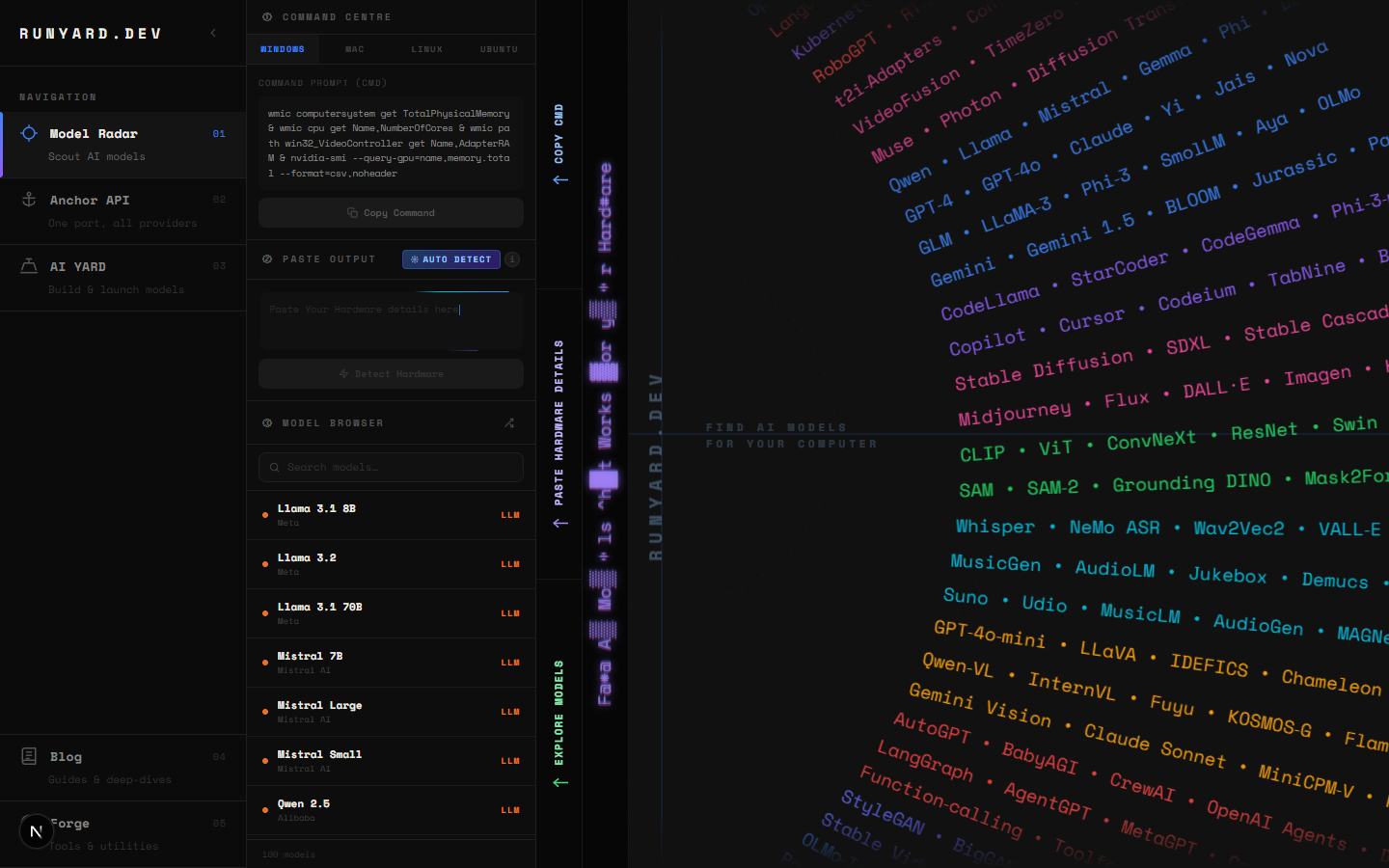
Enter your GPU model and VRAM on runyard.dev and the Model Radar immediately shows every vision model that fits — LLaVA, MiniCPM-V, InternVL, Qwen2.5-VL, BakLLaVA — ranked by composite score (quality × speed × fit). You'll see estimated tokens per second for your hardware, memory usage, and a direct Ollama pull command. No more guessing, no more failed downloads.
On runyard.dev, filter by "Vision" use case to see only multimodal models. The score breakdown shows quality, speed, fit, and context length — so you can decide whether you want the fastest model or the most accurate one for your 8GB GPU.
Which Use Cases Work Best Locally?
Not every vision task is equally suitable for a local model. Here's where local vision AI genuinely shines versus where you might still want a cloud API:
- ▸✅ Image captioning and alt-text generation — local models are excellent here
- ▸✅ Document OCR and receipt/invoice parsing — MiniCPM-V and Qwen2.5-VL shine
- ▸✅ Screenshot analysis and UI descriptions — great for accessibility tools
- ▸✅ Private photo organization — analyze personal photos without cloud upload
- ▸✅ Real-time webcam captioning — LFM-2.5VL-1.6B in the browser handles this
- ▸⚠️ Complex multi-image reasoning — GPT-4o Vision still leads at this
- ▸⚠️ Medical/scientific image analysis requiring high precision — verify outputs carefully
The Bottom Line
Yes, you can absolutely run image models locally in 2026. An 8GB GPU runs 7 or more vision models. A MacBook M1 runs nearly everything up to 13B. And with LFM-2.5VL-1.6B, you don't even need an install — just open a browser tab. The limiting factor isn't capability anymore. It's knowing which model to pick for your hardware. That's where runyard.dev comes in — free, instant, no account needed. Enter your specs and get your answer.
Start here: open runyard.dev, enter your GPU and RAM, filter by "Vision" use case, and pick the top-ranked model. Pull it via the Ollama command shown. Most users are up and running with local vision AI in under 10 minutes.
Tools
Find AI models that fit your exact hardware. Enter your specs and get a ranked list instantly.
Newsletter